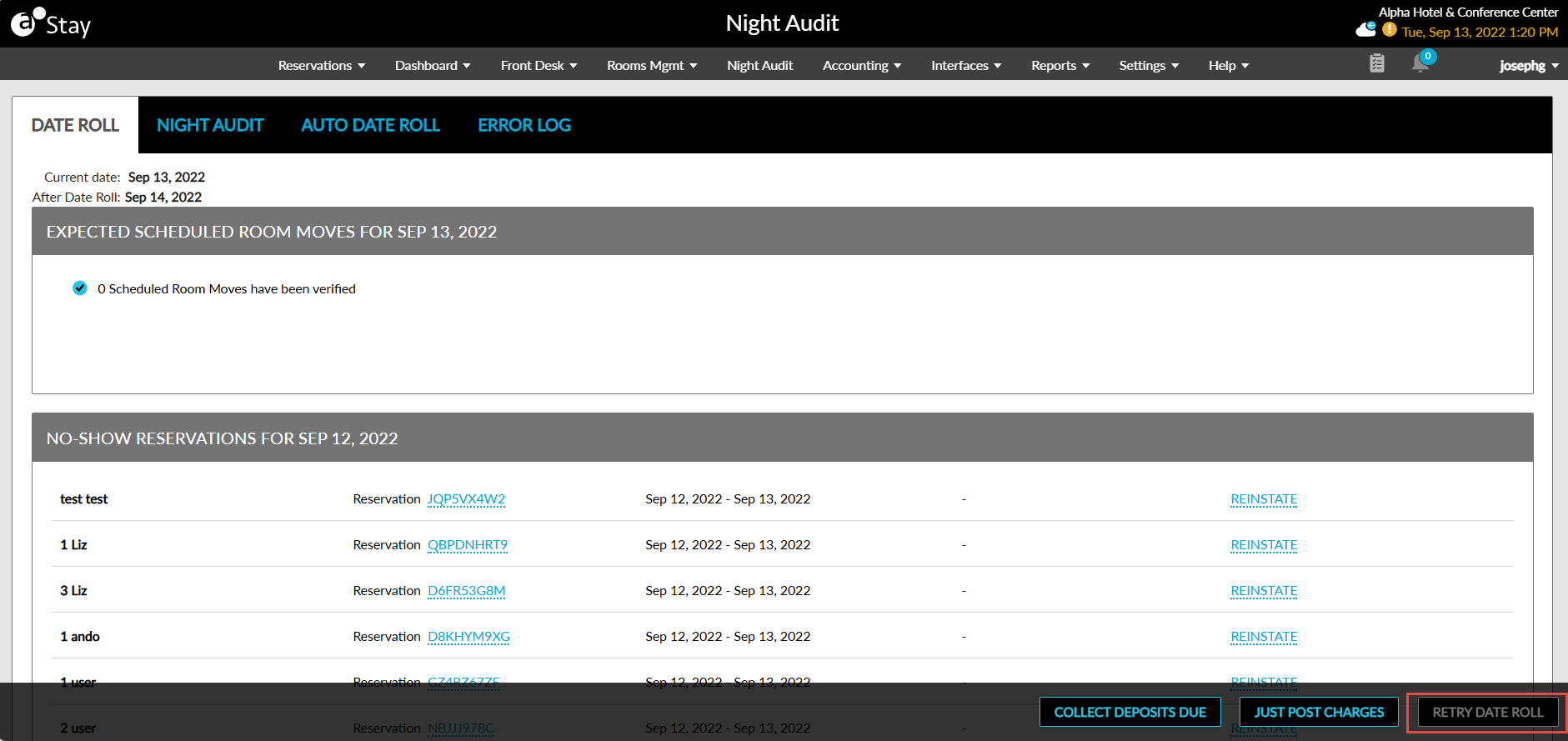
Manual Date Roll
The Roll the Date option mainly aims to check whether the status of the property’s rooms are automatically checked, housekeeping patterns and services that need to be applied to those rooms are determined, room and tax and recurring charges are posted, and service requests are generated so that housekeeping managers can distribute assignments the next day. Once these processes are completed, the user is ready to roll the date.
Perform the following steps to roll the date:
Navigate to Night Audit ➜ Date Roll tab. The Date Roll tab is displayed.
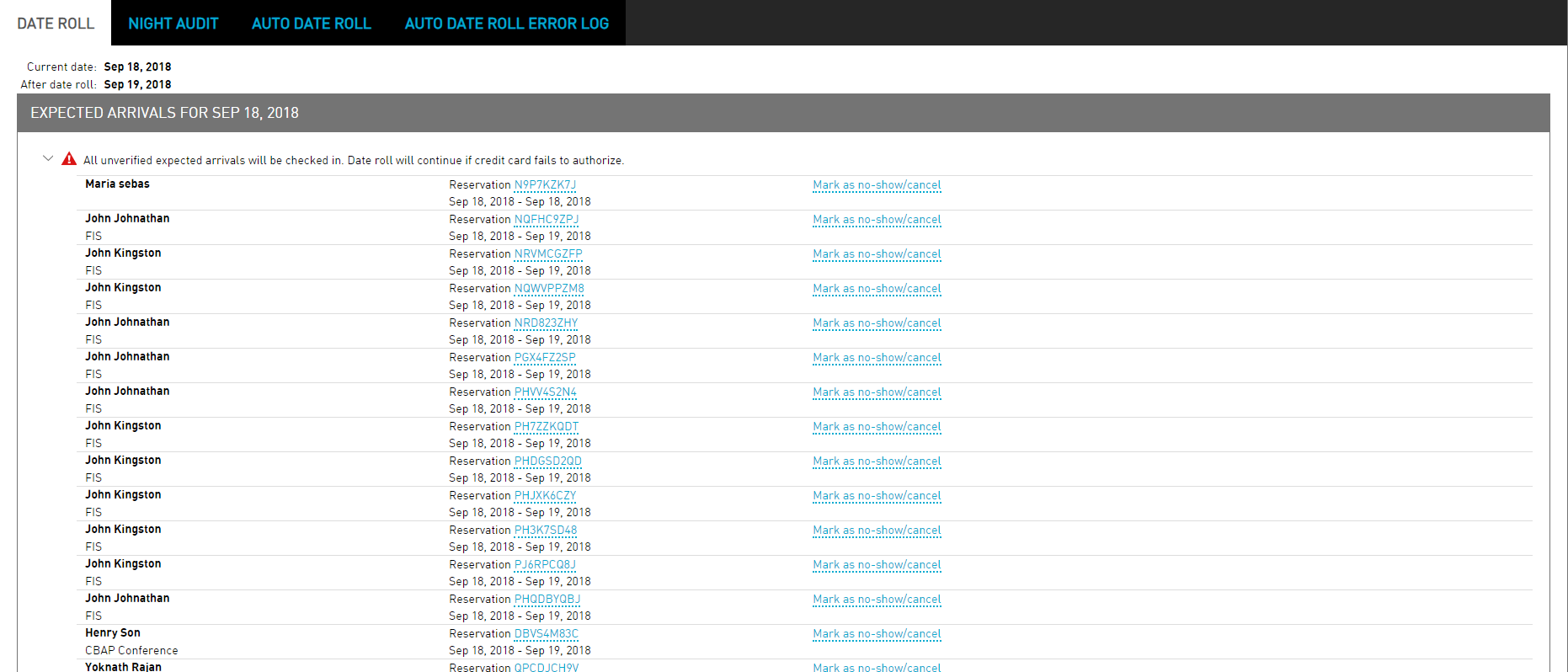
Click Roll the Date. The Confirm Date Roll dialog box appears.
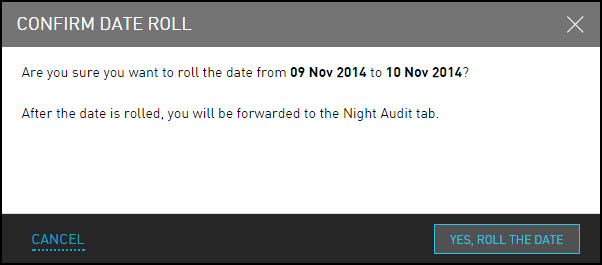
Click Yes, Roll The Date. After the date is rolled, see the Night Audit tab, where the user can reconcile the ledgers and close the day.
If the date has been rolled within 12 hours, an error message appears, and additional permissions are required.
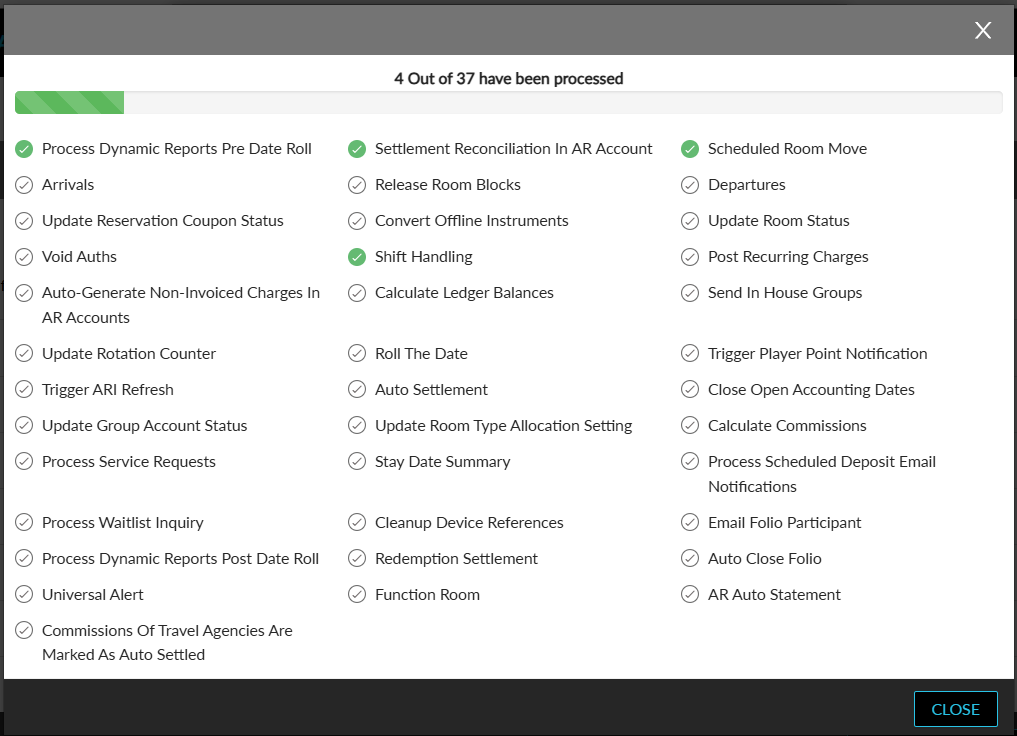
The date roll will be completed only when all the tasks are processed successfully in the Night Audit Process pop-up screen. The failed tasks are highlighted in red.
Perform a retry to reinitiate the failed tasks using the Retry option in the Night Audit Process pop-up screen.
When the date roll is not completed successfully, users can perform the required actions for the reservations that are not processed in each section in the Date Roll tab and then reinitiate date roll by clicking on the Retry Date Roll option.